If you turn on your computer, but the monitor stays dark, it may be in standby mode. This can be confusing and frustrating. You ask yourself, “Why is my monitor in standby mode?” In this article, we will explain the main reasons for this issue. We will also share simple ways to fix it. Let’s get started.
What Is Standby Mode?
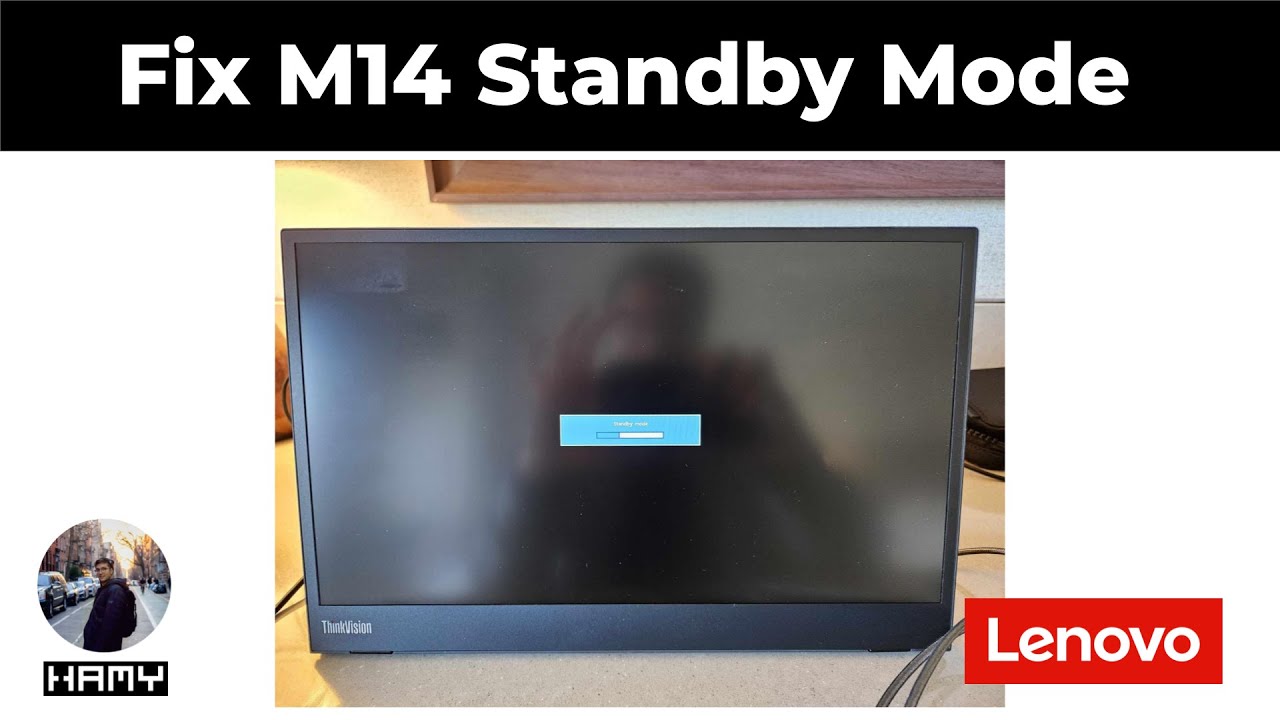
Standby mode is a low-power state for your monitor. It means the screen is off, but the monitor is still on. The monitor waits for a signal from the computer. When it gets the signal, it turns back on and shows the picture.
Monitors enter standby mode to save energy. It helps reduce power use when the computer is not active. But sometimes, the monitor stays in standby mode even when the computer is on. This is a problem.
Common Reasons Why Monitors Go Into Standby Mode
Here are some main reasons why your monitor may stay in standby mode:
- No Signal From the Computer
- Loose or Damaged Cables
- Wrong Input Source Selected
- Computer Is in Sleep or Hibernate Mode
- Graphics Card or Driver Problems
- Monitor Settings or Hardware Issues
No Signal From The Computer
The most common cause is no video signal to the monitor. The monitor waits for the signal. Without it, the screen stays blank and shows “standby.”
This can happen if the computer is off or has not started properly. Sometimes the computer is on but not sending a video signal. This can be due to hardware or software issues.
Loose Or Damaged Cables
Check the cables that connect your monitor to the computer. If they are loose or broken, the monitor gets no signal. This causes standby mode.
Look at the video cable. It could be VGA, HDMI, DVI, or DisplayPort. Make sure it is fully plugged in on both ends. Also, check for any damage. If the cable is bad, replace it.
Wrong Input Source Selected
Many monitors have multiple input ports. You can switch between HDMI, VGA, or DisplayPort inputs. If the monitor is set to the wrong input, it cannot find the computer signal.
Use the monitor’s buttons or menu to select the correct input source. This often fixes the standby problem.
Computer Is In Sleep Or Hibernate Mode
Your computer may be in sleep or hibernate mode. In these modes, the computer saves power by stopping video output. The monitor sees no signal and goes into standby.
Press a key or move the mouse to wake the computer. This should bring the monitor back to normal.
Graphics Card Or Driver Problems
If the graphics card is not working well, it may not send a video signal. This causes the monitor to stay in standby mode.
Sometimes the graphics driver is outdated or corrupted. Updating the driver can solve this problem. You can update drivers through your computer’s device manager or the graphics card maker’s website.
Monitor Settings Or Hardware Issues
Sometimes, the monitor itself has a problem. It could be a setting inside the monitor menu or a hardware fault.
Try resetting the monitor to factory settings. This option is usually in the monitor’s on-screen menu.
If the monitor still stays in standby mode, it may need repair or replacement.
How To Fix Your Monitor Standby Mode Issue
Now, let’s look at some steps you can take to fix this problem. Follow these steps one by one.
Step 1: Check All Cable Connections
- Turn off your computer and monitor.
- Unplug the video cable from both the monitor and the computer.
- Look for any damage or dirt on the cable ends.
- Plug the cable back in firmly.
- Turn on the computer and monitor.
This simple step often solves the problem.
Step 2: Select The Correct Input Source
- Press the monitor’s menu button.
- Find the input source option.
- Select the input that matches your cable (HDMI, VGA, etc.).
- Save and exit the menu.
- Check if the monitor shows the computer screen.
Step 3: Wake Up Your Computer
- Press a key on the keyboard.
- Move the mouse to wake the computer from sleep.
- If needed, press the power button briefly.
If the computer does not wake, try restarting it.
Step 4: Update Graphics Drivers
- Open your computer’s device manager.
- Find the display adapters section.
- Right-click your graphics card and choose update driver.
- Follow the instructions to search and install updates.
- Restart your computer after updating.
Step 5: Reset The Monitor
- Open the monitor’s menu.
- Look for a reset or factory settings option.
- Select it and confirm the reset.
- Check if the issue is fixed.
Step 6: Test With Another Cable Or Monitor
If possible, try a different video cable. Or connect the monitor to another computer. This helps find out if the cable or monitor is bad.
Quick Table: Troubleshooting Checklist
| Problem Cause | What to Do |
|---|---|
| No signal from computer | Restart computer, check power |
| Loose or damaged cables | Reconnect or replace cables |
| Wrong input source | Select correct input on monitor |
| Computer in sleep mode | Wake computer by pressing keys |
| Graphics driver issues | Update or reinstall drivers |
| Monitor hardware problem | Reset monitor or get repair |
Final Thoughts
Seeing a monitor in standby mode can be puzzling. But usually, the problem is simple. It is often a cable or setting issue. Follow the steps carefully. Most people fix the problem at home.
If none of the solutions work, the problem may be with the monitor or computer hardware. In this case, ask a technician for help.
Remember, take your time. Check cables and settings first. Then move to software and hardware fixes. Your monitor will be working again soon.
Frequently Asked Questions
Why Does My Monitor Go To Standby Mode Suddenly?
Monitors enter standby to save power when no signal is detected. It helps reduce electricity use and screen wear.
How Can I Stop My Monitor From Entering Standby?
Adjust your computer’s power settings to prevent sleep or standby modes. Change screen timeout to a longer time or never.
Is Standby Mode Harmful To My Monitor?
Standby mode is safe and helps extend your monitor’s lifespan. It uses very little power and reduces screen stress.
Can A Loose Cable Cause Monitor Standby Issues?
Yes, a loose or damaged cable can interrupt the video signal. Check and secure all cables connected to the monitor and PC.