Using a headset with your desk phone can make work easier. You can talk and keep your hands free. Plantronics headsets are popular for this. But many people do not know how to connect them to a desk phone. This guide will help you connect your Plantronics headset step by step.
What You Need Before Starting
Before you start, check these things:
- Your Plantronics headset
- Your desk phone
- Headset adapter (if needed)
- Phone line cord
- Power source (if required)
Plantronics headsets come with different cables. Some fit directly into phones. Others need an adapter. Knowing your phone model helps too.

Types of Plantronics Headset Connections
Plantronics headsets connect to phones in two main ways:
- Wired connection: Using a cable to plug directly.
- Wireless connection: Using a base station and no wires.
This guide focuses on wired connections. Wireless setup is different and needs more steps.
Step 1: Identify Your Phone’s Headset Port
Look at your desk phone. Find the headset port. It is usually at the back or side. It may say “Headset” or have a headphone icon. Sometimes, it looks like a small phone jack, like a headphone socket.
If you cannot find it, check the phone’s manual. You can also look online for your phone model details.
Step 2: Check Your Plantronics Headset Cable
Look at the cable on your Plantronics headset. It usually has one or two ends:
- RJ9 connector: Looks like a small phone plug.
- 3.5mm jack: Like regular headphone plugs.
If your headset has an RJ9 plug, you can connect it directly to many desk phones. If it has a 3.5mm jack, you might need an adapter.
Step 3: Connect the Headset Cable to the Phone
Now, connect the headset to the phone.
- If your phone has a headset port and your cable has an RJ9 plug, plug it in directly.
- If your phone uses a different headset plug, you need an adapter from Plantronics.
- If your headset uses a 3.5mm jack, get a Plantronics adapter or a phone adapter.
Adapters help match the headset cable to the phone port.
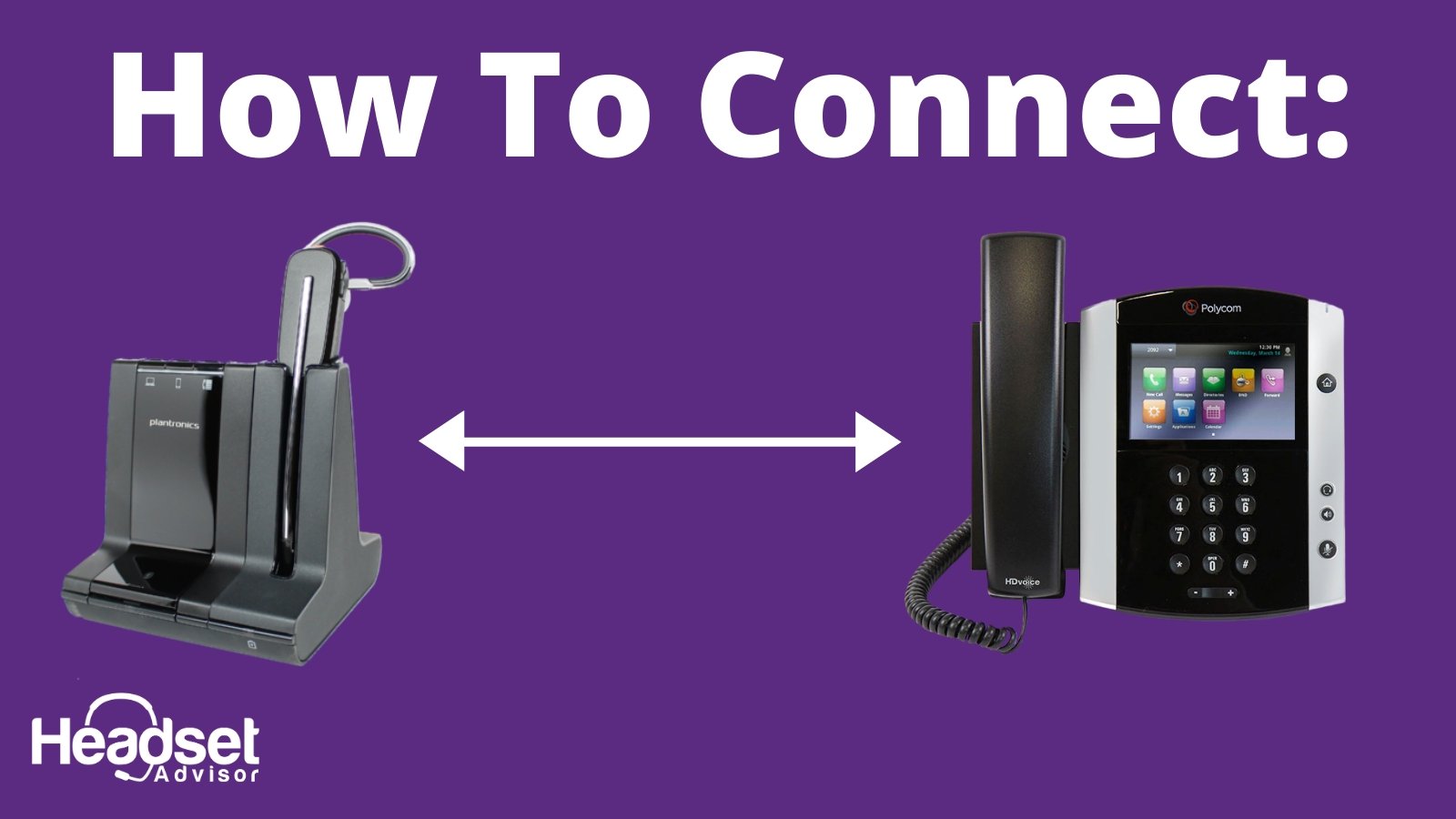
Step 4: Connect the Phone Line to the Adapter
If you use an adapter, you must connect the phone line too. Follow these steps:
| Step | What to Do |
|---|---|
| 1 | Unplug the phone line from the desk phone. |
| 2 | Plug the phone line into the adapter’s “Phone” port. |
| 3 | Connect the adapter’s “Phone” cable into the desk phone. |
This lets the adapter work between the phone and the headset.
Step 5: Test Your Headset
After connecting, test the headset:
- Pick up the handset or press the headset button on the phone.
- Put the headset on your ear.
- Make a test call or ask someone to call you.
- Check if you hear sound clearly.
- Speak and see if the other person hears you.
If it does not work, check the connections. Make sure cables are fully plugged in. Check if the headset is turned on, if it has a power switch.
Troubleshooting Common Problems
Sometimes, things don’t work right away. Here are some tips:
- No sound: Check if the headset is plugged in properly.
- Sound is low: Adjust the headset volume.
- Microphone not working: Make sure the microphone is not muted.
- Static noise: Try a different phone port or cable.
- Phone does not detect headset: Restart your phone and try again.
Tips for Best Experience
Use these tips for better headset use:
- Keep your headset clean for clear sound.
- Avoid twisting the cables to prevent damage.
- Charge wireless headsets fully before use.
- Place your phone and headset base where you can reach easily.
- Use noise-canceling headsets for noisy offices.
Why Use a Plantronics Headset with Your Desk Phone?
Plantronics headsets help you in many ways:
- Keep your hands free to write or type.
- Talk comfortably without holding the handset.
- Move around your desk while talking.
- Protect your neck and shoulders from strain.
- Hear calls clearly in busy places.
Summary Table: Connecting Plantronics Headset to Desk Phone
| Step | Action |
|---|---|
| 1 | Find the headset port on your desk phone. |
| 2 | Check your Plantronics headset cable type. |
| 3 | Plug the headset cable into the phone or adapter. |
| 4 | If needed, connect phone line to adapter. |
| 5 | Test the headset by making a call. |
Connecting your Plantronics headset to a desk phone is easy. Just follow these simple steps. Soon, you will enjoy clear calls and hands-free convenience. Take your time and check your phone and headset carefully. You will find the right cables and ports. Then, plug and test. If problems come up, try the tips above. Enjoy better calls every day!
Frequently Asked Questions
How Do I Connect A Plantronics Headset To A Desk Phone?
Plug the headset adapter into your desk phone’s headset port. Connect the Plantronics headset to the adapter. Test the connection by making a call.
What Cables Are Needed For Plantronics Headset Setup?
You need a Plantronics headset cable and the correct phone adapter. Check your phone model to select the right adapter. Use only genuine cables for best performance.
Can Plantronics Headsets Work With Any Desk Phone?
Most Plantronics headsets work with popular desk phone brands. Confirm your phone’s compatibility before buying. Some phones need specific adapters to connect.
Why Is My Plantronics Headset Not Working With My Phone?
Check if all cables are plugged in firmly. Make sure your headset is charged or has fresh batteries. Restart your phone and try again.